> For the complete documentation index, see [llms.txt](https://docs.cometh.io/llms.txt). Markdown versions of documentation pages are available by appending `.md` to page URLs; this page is available as [Markdown](https://docs.cometh.io/quick-start/getting-started.md).
# Getting started
Estimated time: 3min
You want to try Cometh Connect ? [Request your access to the dashboard](https://app.cometh.io/register?product=connect\&utm_source=doc)
In this tutorial, we'll create a smart wallet and execute a transaction to increment a counter smart contract, using Cometh Connect.
## Get Access to Cometh Connect
To use Cometh Connect, the first step is to get your api keys at [https://app.cometh.io](https://app.cometh.io/login?callbackUrl=/dashboard). If this is your first time using Cometh Connect, please [reach out](https://calendly.com/aurelien-gm/30min?utm_source=alembic-dashboard-marketplace) so we can set you up with a Connect account and apiKey.
## Setting up your project
Once you validate the email registration, you'll have access to that panel:
By choosing Connect, you'll be able to create your first Cometh Connect project. For this tutorial, we will create a project on the Polygon testnet network.
You will then have access to your dashboard.
## Get your API Keys
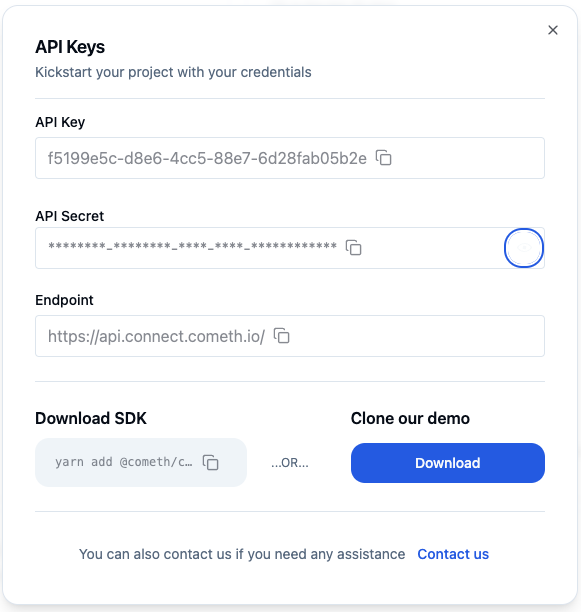
On your dashboard, you can click on the apiKey button to access all your project's credentials.
You now have your project API key, congrats ! It will be used in your front-end to authenticate public API calls.
## Test the boilerplate
Going back to the apiKey button, by clicking on the getting started button you'll be able to download the tutorial repository and start trying it out !
Once done, you can run the examples using bun:
{% hint style="info" %}
The project runs on bun, you might need to [install bun](https://bun.sh/docs/installation\)) if you do not have it already:For each example, you'll have to create an env file with the associated values:
{% endhint %}
```
bun install
bun dev
```
You can now go and test the demo live, here is what you should be able to do: